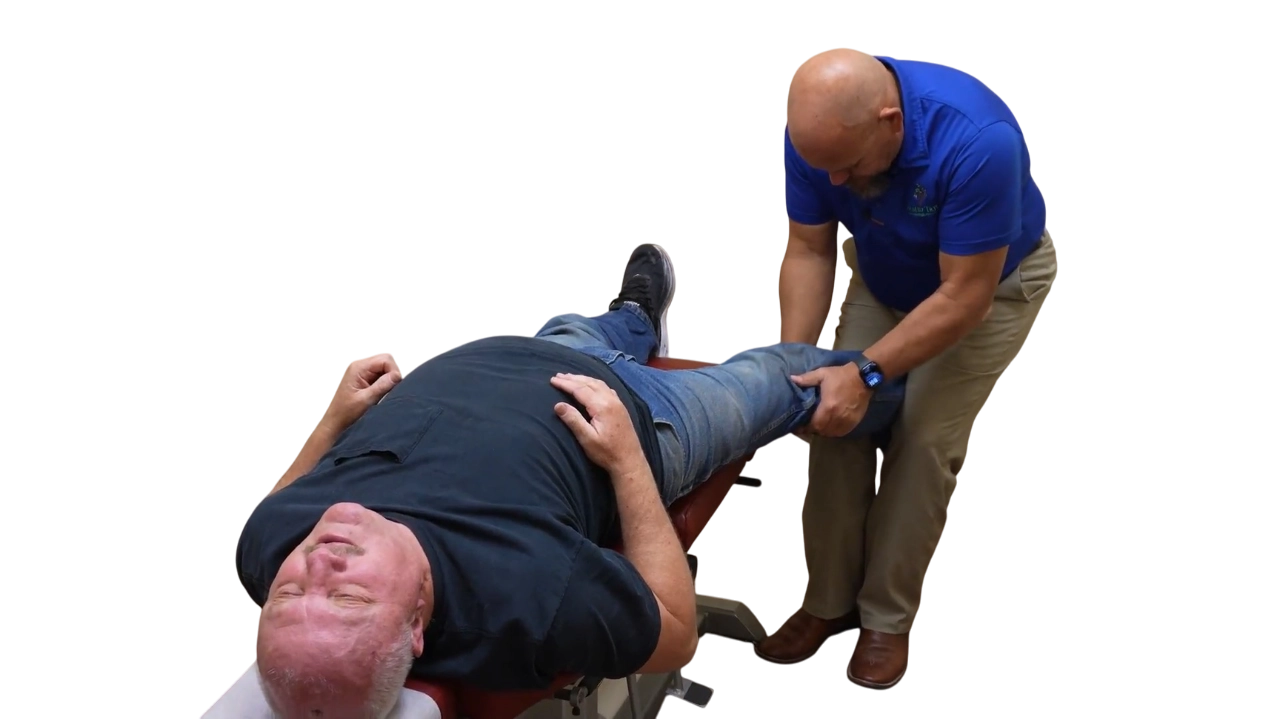

Good workplace ergonomics can help prevent the back and neck pain so common among people who sit at a desk all day. At Family Tree Chiropractic in Oklahoma City, Dr. Micah Carter teaches patients how to set up their workspace to avoid tech neck, wrist problems, and lower back pain from prolonged sitting. A few small changes to your monitor, chair, keyboard, and break habits can make a real difference over time.
Why Workplace Ergonomics Matter
Up to 80% of adults experience low back pain at some point, and many office workers spend 8 to 10 hours a day at their desks. Poor posture during that time creates cumulative stress that can eventually lead to pain.
Your body wasn’t designed to sit still for hours or repeat the same small movements all day. Without a good ergonomic setup, desk work creates uneven stress that adds up over time.
The problems develop gradually. You might not notice anything in your 20s or early 30s. But by your 40s and 50s, years of poor ergonomics often show up as chronic pain, headaches, and stiffness.
Common Workplace Pain Problems
Tech Neck and Forward Head Posture
Tech neck develops from constantly looking down at screens. Your head shifts forward, putting extra stress on your neck muscles and cervical spine.
Your head weighs about 10 to 12 pounds in a neutral position. As it drifts forward and down toward a laptop or phone, the load your neck muscles have to manage rises sharply, and one widely cited model estimates it can reach several times your head’s weight.
This constant strain contributes to neck pain, headaches, and upper back tension. Over the years, it may also add to wear in your cervical spine.
Lower Back Pain from Sitting
Prolonged sitting, especially slumped sitting, increases pressure on spinal discs, and long hours in a chair can leave core muscles underused.
Poor chair support lets your pelvis tilt backward and flatten your lower back curve. This position stresses lower back structures and can lead to chronic pain over time.
Many office workers develop some lower back pain from years of sitting with inadequate support and poor posture.
Carpal Tunnel and Wrist Problems
Typing with bent wrists can increase pressure on the median nerve as it passes through your carpal tunnel. Over time, that can contribute to numbness, tingling, and pain.
A keyboard that’s too high and a mouse placed too far away create the wrist positions linked to carpal tunnel problems. A good ergonomic setup may help prevent many of these issues.
Optimal Monitor Placement
Your monitor should sit at eye level or slightly below. The top of the screen should line up roughly with your eyes when you sit with good posture.
Most people’s monitors are too low, which forces them to look down constantly. That creates the forward head posture behind tech neck.
Distance matters too. Sit about an arm’s length from your screen. If you have to lean forward to read, increase the font size rather than moving closer.
Dual Monitor Setup
If you use two monitors, place your primary monitor directly in front of you. Position the secondary monitor to the side, angled slightly toward you.
Avoid placing monitors at extreme angles that require constant neck rotation, which creates uneven muscle stress.
A monitor arm makes it easy to adjust height and position so you can fine-tune your setup.
Proper Chair Setup
Set your chair height so your feet rest flat on the floor with knees at about 90 degrees. Your thighs should be parallel to the floor or angled slightly down.
Lumbar support is critical. Your chair should support the natural curve in your lower back, which helps prevent the backward pelvic tilt that stresses your spine.
Armrests should support your forearms while letting your shoulders relax. Armrests set too high push your shoulders up and create upper back and neck tension.
Seat Depth and Recline
Leave about 2 to 3 inches between the front edge of the seat and the back of your knees. Too much depth makes you perch forward or rounds your lower back.
A slight recline of about 100 to 110 degrees reduces disc pressure compared to sitting bolt upright. That doesn’t mean slouching, just a gentle recline with good lumbar support.
Keyboard and Mouse Position
Set your keyboard at a height that lets your forearms rest roughly parallel to the floor while typing, with your wrists in a neutral position, not bent up or down.
Many desks are too high for proper keyboard placement. A keyboard tray can bring the keyboard below the desk surface.
Keep your keyboard directly in front of you. Reaching to one side creates uneven posture that stresses your spine and shoulders.
Mouse Ergonomics
Place your mouse close to your keyboard at the same height. Reaching far to the side for your mouse creates shoulder and neck strain.
A vertical mouse keeps your forearm in a more neutral position. Traditional mice require forearm rotation that can contribute to wrist and elbow problems.
If you use your mouse a lot, try alternating hands now and then to spread out the repetitive stress.
Standing Desk Considerations
Standing desks can reduce sitting-related problems when used well, but standing all day creates its own issues.
The key is changing positions often. Many people do well alternating between sitting and standing several times a day, for example standing for part of each hour, and adding short walks.
When standing, keep the same ergonomic relationships as when sitting: monitor at eye level, keyboard at elbow height, and wrists neutral.
Anti-Fatigue Mats
If you stand for long periods, use an anti-fatigue mat. It reduces stress on your feet, knees, and lower back from standing on hard floors.
Wear supportive shoes at a standing desk. Flat, unsupportive shoes increase lower back and leg fatigue.
Laptop Ergonomics
Laptops make for poor ergonomics when used as your main computer. The screen sits too low and the keyboard forces awkward wrist positions.
Use a laptop stand to raise the screen to eye level, then connect an external keyboard and mouse positioned ergonomically.
If you must use a laptop without extra equipment, at least raise it on books or a stand to bring the screen closer to eye level.
Phone and Device Usage
Hold your phone closer to eye level instead of looking down at it. It feels awkward at first but quickly becomes natural and significantly reduces neck strain.
Use speakerphone or a headset for long calls. Cradling your phone between ear and shoulder creates severe neck stress that builds over time.
Limit long stretches of phone use. The small screen pulls your head down even more than a computer monitor, so take frequent breaks.
Taking Regular Breaks
The 20-20-20 rule helps prevent eye strain and encourages movement. Every 20 minutes, look at something 20 feet away for 20 seconds.
Stand and move every 30 to 60 minutes. Walk to get water, stretch, or simply stand for a minute. Breaking up long periods of sitting is critical.
Use break reminders if you lose track of time. Many apps can prompt you to move at regular intervals.
Desk Stretches
Simple stretches at your desk prevent tension from building up. Shoulder rolls, gentle neck turns, and upper back extensions take seconds but help a lot.
Stand up and gently bend backward to counteract the forward-bent posture of desk work. This reverses the stress pattern of sitting.
Wrist and forearm stretches help prevent wrist problems. Extend your arm with your palm up, use your other hand to gently pull your fingers back, and hold 15 to 20 seconds.
Document and Reference Placement
Use a document holder between your monitor and keyboard to keep reference materials at eye level rather than flat on your desk.
Looking down at papers on your desk creates the same forward head posture as a low monitor. Raising documents reduces that stress.
If you reference materials often while typing, keep them as close to your monitor as possible to minimize head and eye movement.
Lighting Considerations
Poor lighting makes you lean forward and squint at your screen, creating postural stress and eye strain.
Position your monitor perpendicular to windows to avoid glare, which pushes you into uncomfortable positions.
Use task lighting for documents so you don’t lean forward to read papers in dim light.
Working from Home Ergonomics
Home workspaces often have worse ergonomics than offices. Kitchen tables and couches aren’t designed for 8-hour workdays.
If you work remotely regularly, invest in proper home office furniture. A good chair and a desk at the right height make an enormous difference.
Resist working from bed or the couch. These positions create poor ergonomics that add to postural problems.
Ergonomic Assessments
A professional ergonomic assessment can identify specific problems with your setup. What works for one person may not work for another based on height, proportions, and individual issues.
At Family Tree Chiropractic, I provide ergonomic recommendations as part of treatment for work-related pain. Fixing your workspace helps keep problems from returning after treatment.
Take photos of your workspace from different angles. They help identify issues that aren’t obvious when you’re sitting at your desk.
When Ergonomics Aren’t Enough
Sometimes ergonomic changes alone can’t resolve existing problems. Years of poor posture can create joint restrictions and muscle imbalances that need professional treatment.
Chiropractic care addresses the spinal restrictions that build up from years of poor posture. Combined with ergonomic improvements, it can lead to lasting relief rather than just slowing further problems.
Our R.E.S.T.O.R.E. Method addresses both the effects of poor ergonomics and retrains your body to hold good posture in your improved workspace.
When to See a Doctor
Get checked promptly if desk-related pain comes with numbness or weakness that’s spreading, pain that wakes you at night, or symptoms in both arms or legs. These need an evaluation rather than just a new chair.
Exercises for Office Workers
Core strengthening supports your spine during long periods of sitting. Strong core muscles help you hold good posture with less effort.
Chin tucks strengthen the deep neck muscles that counter forward head posture. Pull your chin straight back, hold 5 to 10 seconds, and repeat throughout the day.
Shoulder blade squeezes strengthen upper back muscles weakened by rounded shoulders. Squeeze your shoulder blades together and down, hold 5 seconds, and repeat 10 times.
Preventing Future Problems
Setting up good ergonomics early helps prevent chronic pain. Don’t wait until something hurts to address your workspace.
Workers in their 20s often ignore ergonomics because nothing hurts yet. But the stress is building even without symptoms, and prevention is easier than treatment.
Regular posture correction through chiropractic care catches small problems before they become chronic. Periodic maintenance visits help counter the daily stress of desk work.
Real Patient Success Stories
I treated a software developer with severe tech neck and daily headaches from years of poor monitor placement. His monitor sat directly on his desk, forcing him to look down all day.
We raised his monitor on a stand, adjusted his chair height, and corrected his keyboard position. Combined with chiropractic care for his existing postural problems, his headaches resolved within six weeks.
Another patient, an accountant, developed carpal tunnel syndrome during tax season. Her keyboard was too high and she had no wrist support.
A keyboard tray at the proper height and an ergonomic wrist rest cleared up her symptoms over eight weeks, and she avoided the carpal tunnel surgery her doctor had recommended. Every case is different, and results vary.
Frequently Asked Questions
Is a standing desk better than sitting?
Not on its own. The real benefit comes from changing positions often and moving throughout the day.
What should I look for in an office chair?
Adjustable height, good lumbar support, a seat depth that fits your legs, and armrests that let your shoulders relax.
How often should I take breaks at my desk?
Aim to stand or move every 30 to 60 minutes, and use the 20-20-20 rule to rest your eyes.
Getting Your Workspace Assessed
If workplace pain is your concern, your first visit includes a discussion of your work setup and specific recommendations for your situation.
Bring photos of your workspace or a short video of you working at your desk. This helps identify the ergonomic problems contributing to your pain.
We’ll create a plan that addresses both treatment of existing problems and prevention through better ergonomics.
Don’t wait for workplace pain to become chronic. Call Family Tree Chiropractic at (405) 340-4400 to schedule an evaluation with Dr. Carter. We’ll assess your workspace ergonomics and treat any existing problems before they get worse. Visit our contact page to book online.
Family Tree Chiropractic in Oklahoma City is committed to advancing patient health through innovative and compassionate chiropractic care. Led by Dr. Micah Carter, our team integrates modern techniques such as shockwave therapy with a holistic approach to pain relief and wellness. We believe in empowering our patients with comprehensive treatment options that address the root causes of pain and promote long-term health and vitality.